

How to get live captions on your iPhone, step by step
Turn on Apple's Live Captions in 4 taps (iPhone 11 or later, 8 languages), caption a chat in the room, and learn when an app does more.
 Nate from Captio AI6 min read
Short answer
On an iPhone 11 or later, open Settings, then Accessibility, then Live Captions, and turn it on. To caption a conversation in the room, tap Live Captions, then Microphone [1]. Apple says the feature is not available in all languages, countries or regions [1][2]. If you also want speaker names, saved recordings, summaries or more languages, Captio AI, a live captioning app for deaf and hard of hearing people, covers those.
iPhone 111
the oldest iPhone that Apple says supports Live Captions
4 taps1
Settings, Accessibility, Live Captions turns the feature on; then Microphone for a conversation
82
languages in Apple's Live Captions list: Cantonese, English, French, German, Japanese, Korean, Mandarin Chinese and Spanish, in regional variants
On this page
- How do I turn on Live Captions on my iPhone?
- How do I caption a conversation in the room?
- How do I make the captions easier to read?
- How do I turn Live Captions on and off quickly?
- Which languages does Live Captions cover?
- Can I rely on Live Captions at a doctor's appointment or a meeting?
- What can Live Captions not do?
- When is an app better than the built-in setting?
- Which one should you start with?
Live Captions is a setting inside iOS, and on an iPhone 11 or later you turn it on in Settings, under Accessibility1. It gives you a real-time transcription of spoken audio1, including a conversation in the room, so a deaf or hard of hearing person can read what the person across the table is saying. This guide shows the steps in the order you live them, what the limits are, and when a captioning app does more.
How do I turn on Live Captions on my iPhone?
You turn on Live Captions in Settings, then Accessibility, then Live Captions1. Apple says the feature is available on iPhone 11 or later1. Follow these steps:
- Open Settings and tap Accessibility.
- Tap Live Captions and switch it on.
- Tap Appearance to change the text, size and colour of the captions1.
If you cannot find it, the phone may be older than an iPhone 11, or your language or region may not be on Apple's list (see below). RNID, the UK charity for deaf people, tells readers that an iPhone 11 or newer comes with the feature already installed5.
How do I caption a conversation in the room?
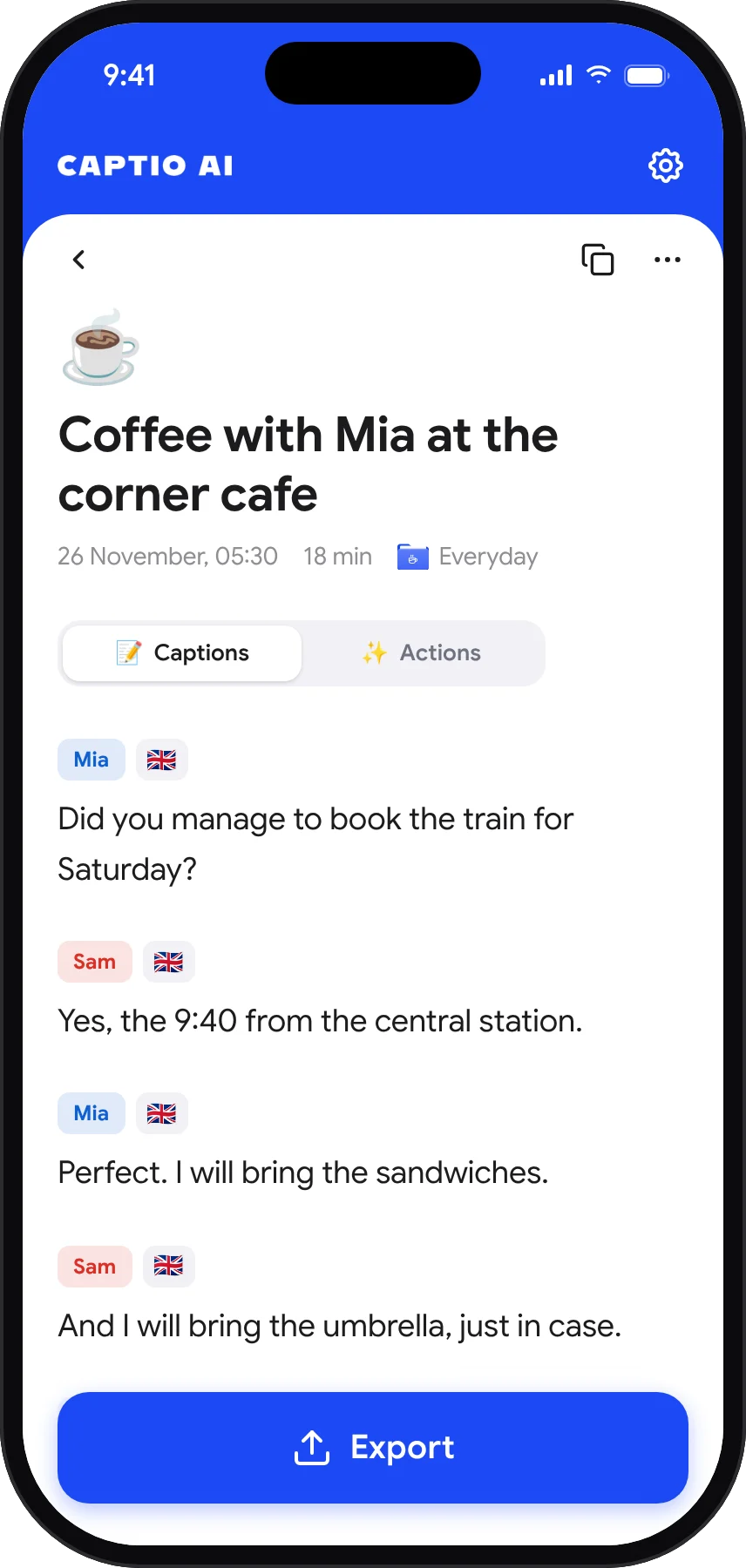
To caption a conversation, tap Live Captions, then tap Microphone1. Apple says Live Captions can caption live, in-person speech through the microphone in your device3. For an everyday chat at a corner cafe, a pharmacy counter or a family dinner, put the phone on the table or hold it near the person talking, and read the captions as they appear.
For everyday conversations like these, a few habits help:
- Keep the phone close. The microphone hears the nearest voice best. If you have a headset connected, choose the microphone you want captions to use.
- Face the person. Captions help, and you still gain from seeing their face.
- Say it is on. Tell the person you are reading captions, so they pause when you look down.
How do I make the captions easier to read?
You change the look of the captions under Appearance, and you move the window by dragging it1. Apple lists these controls:
- Text, size and colour: tap Appearance1.
- Full screen: tap the Maximize button, and Minimize to go back1.
- Position: drag the Live Captions window1.
- Pause: tap Live Captions, then Pause Listening1.
Apple says the window is hidden automatically when no audio is detected1, so a quiet moment does not leave a box on your screen.
How do I turn Live Captions on and off quickly?
Use the Accessibility Shortcut. Open Settings, then Accessibility, then Accessibility Shortcut, and choose your features4. Apple says that if you select only one, the feature turns on or off the moment you click the shortcut. You triple-click the side button on an iPhone with Face ID, or the Home button on an iPhone SE4. With more than one feature selected, a menu asks which one you want4. Check that Live Captions is in the list on your iPhone, because Apple's page does not name each feature.
Which languages does Live Captions cover?
Apple's feature availability page lists Cantonese (China mainland and Hong Kong), English (Australia, Canada, India, Singapore, the United Kingdom and the United States), French (Canada and France), German (Germany), Japanese, Korean, Mandarin Chinese (China mainland and Taiwan) and Spanish (Mexico, Spain and the United States)2. That is 8 languages in 18 regional variants. Apple's guide adds that Live Captions isn't available in all languages, countries or regions1.
| Language group | Regions Apple lists2 |
|---|---|
| English | Australia, Canada, India, Singapore, United Kingdom, United States |
| Spanish | Mexico, Spain, United States |
| French | Canada, France |
| German | Germany |
| Mandarin Chinese | China mainland, Taiwan |
| Cantonese | China mainland, Hong Kong |
| Japanese, Korean | Listed without a region |
A German speaker or a Spanish speaker is covered by that list. A speaker of Hindi, Arabic or Polish is not, and needs another tool. Captio AI covers 60+ languages, and a language hint tells it which one to expect.
Can I rely on Live Captions at a doctor's appointment or a meeting?
Use it as a helper, not as the only plan. Apple says the accuracy of Live Captions may vary and shouldn't be relied upon in high-risk or emergency situations1. RNID says speech to text apps are designed for everyday personal use, and that for work, healthcare or other formal settings it is best to use regulated communication support5. At a doctor's appointment or in a work meeting, ask in advance for a sign language interpreter or a human captioner, and use live captions on your own phone as a back-up. Our guide to following a doctor's appointment covers the rights side in the UK and the US.
What can Live Captions not do?
Apple's guide describes captions for speech, a way to copy them and screenshots, and no more1. You can copy the transcription from More Options, then Copy Captions, or take a screenshot or screen recording of the window1. The guide describes no library of saved recordings, no summary and no speaker names1. Apple's hearing page describes Live Captions for in-person speech and for FaceTime and phone calls3. Captio AI is for in-person speech, not for calls.
When is an app better than the built-in setting?
A captioning app is better when you need something Apple's guide does not describe. Captio AI, a live captioning app for deaf and hard of hearing people, is an App Store app6 and also runs on Android. Its Live Captions show speech word by word, separate speakers as Speaker 1 and Speaker 2, and save each recording with its audio. These are the gaps people meet:
- More languages. Captio AI covers 60+ languages, including speech that switches language mid-sentence.
- Names for each speaker. On iPhone, Recognize voices can show "Mia" instead of "Speaker 2".
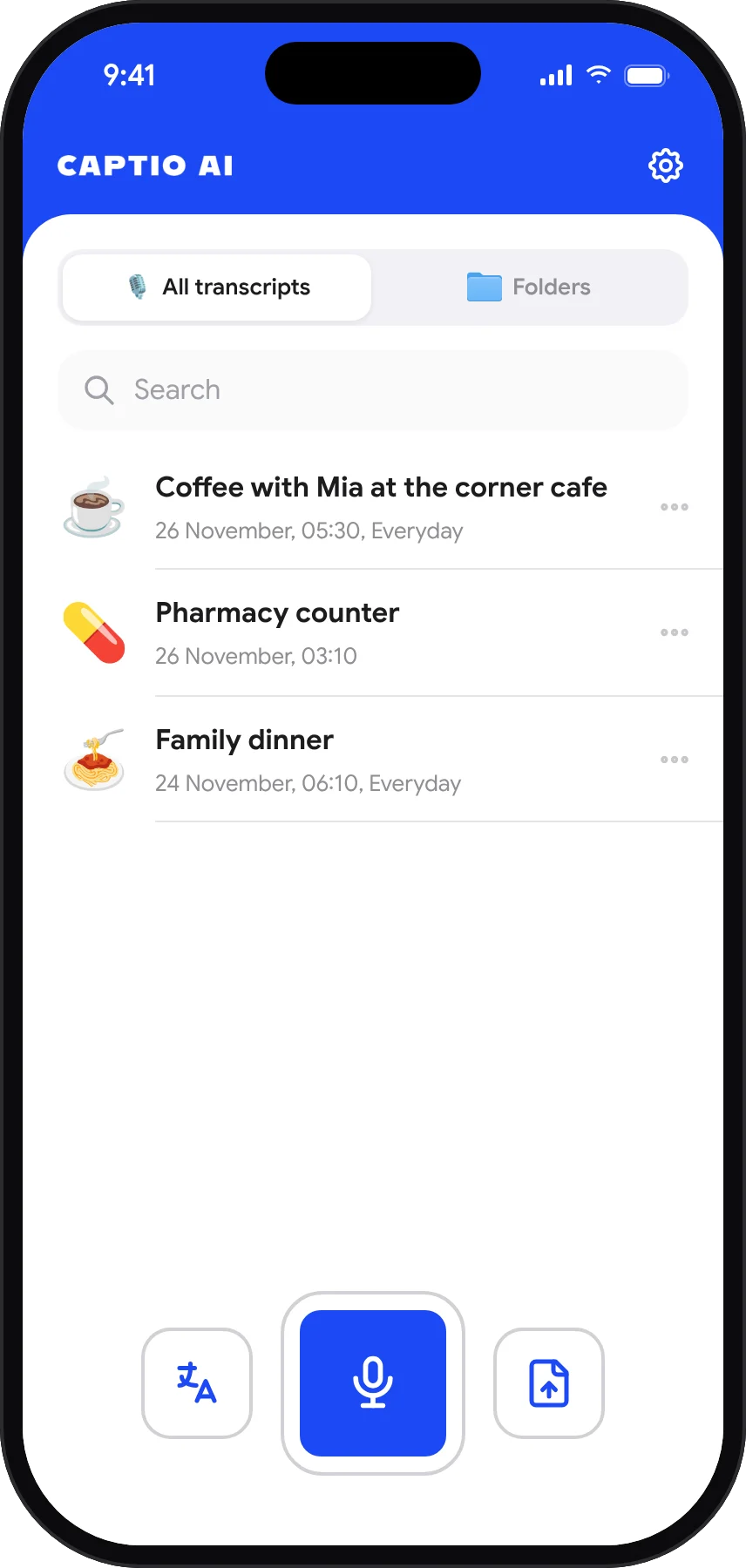
- A record afterwards. Recordings stay in a searchable library, and AI Summary can write key points or to-dos. The free plan has 3 summaries in total.
- Translation. Live Translator shows a translation next to the original captions.
- Sound words. On iPhone, Recognize sounds writes things like [doorbell rings] into the captions while they run.
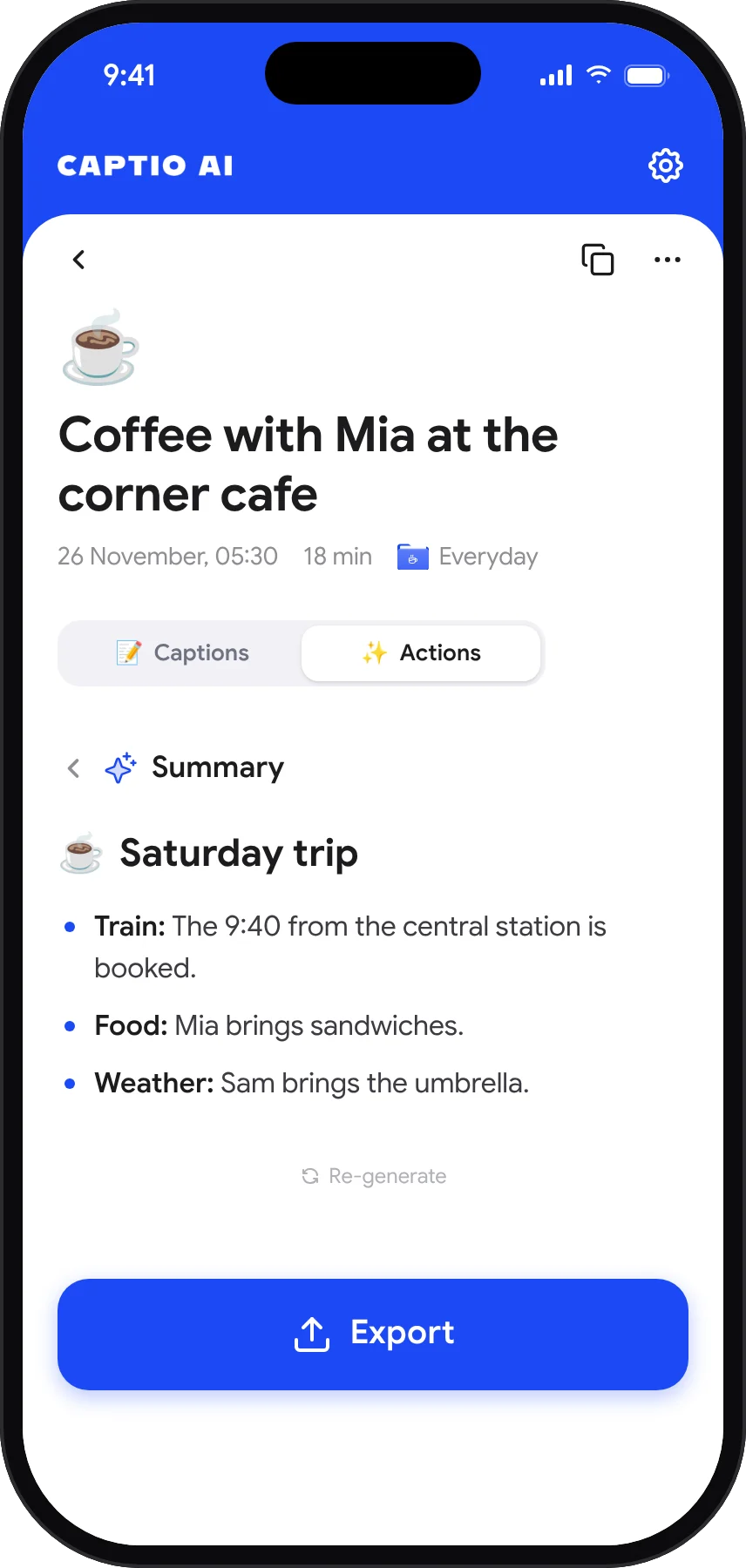
Captio AI is free to download with 100 free credits a day, and the live captions need an internet connection. Without one it still records and transcribes when the phone reconnects. It does not replace a sign language interpreter or a human captioner. For a row-by-row look, read Captio AI vs Apple Live Captions.
Which one should you start with?
Start with Apple's setting, because it costs nothing and is already on an iPhone 11 or later1. Then add a captioning app for the gaps:
- A quick chat in English, Spanish, German or French: Apple Live Captions.
- A dinner where names matter: Captio AI.
- A conversation you want to read again later: Captio AI.
- A language outside Apple's list: Captio AI.
- A formal setting: a human interpreter or captioner first.
Features and languages change, so check Apple's pages and your own iPhone's settings before you rely on either.

Read what people say, while they say it
Captio AI puts live captions on your phone for conversations, appointments, lectures and meetings, in 60+ languages. Free to start. Private by default.
Frequently asked questions
Where is Live Captions on my iPhone?
Live Captions is in Settings, under Accessibility. Turn it on there, then tap Live Captions again to choose Microphone for a conversation in the room or iPhone Audio for sound from the phone itself [1]. It is available on iPhone 11 or later, and not in all languages, countries or regions [1].
Can Live Captions caption a conversation at a cafe or a family dinner in English?
Yes. Apple says Live Captions can caption live, in-person speech through the microphone in your device [3], and English is on Apple's list for Australia, Canada, India, Singapore, the United Kingdom and the United States [2]. Apple adds that accuracy may vary [1], so keep the phone close to the person talking.
Does Live Captions work for a Spanish or German speaker in a shop or at a pharmacy counter?
It can. Apple's list includes German (Germany) and Spanish for Mexico, Spain and the United States [2]. Apple says the feature isn't available in all languages, countries or regions [1], so test it on your own iPhone before you rely on it. Captio AI covers 60+ languages for the same kind of conversation.
Can I use Live Captions at a doctor's appointment in the UK or the US?
You can try it, but Apple says accuracy may vary and Live Captions should not be relied on in high-risk or emergency situations [1]. RNID, the UK charity, advises regulated communication support for work, healthcare or other formal settings [5]. Ask the clinic about an interpreter or captioner as well.
How do I turn Live Captions on and off quickly?
Open Settings, Accessibility, Accessibility Shortcut and choose your features. Apple says that if you pick only one, a triple-click of the side button on an iPhone with Face ID, or the Home button on an iPhone SE, turns it on or off at once [4]. Check that Live Captions appears in the list on your iPhone.
Does Live Captions save a transcript of the conversation?
Apple's guide lets you copy the captions with More Options, then Copy Captions, or take a screenshot or screen recording of the window [1]. It describes no library of saved recordings. Captio AI saves each recording with its audio, and AI Summary can write key points or to-dos from it.
How do I stop the Live Captions window from covering what I am reading?
Drag the Live Captions window to move it, or tap the Maximize button for full screen and Minimize to shrink it again [1]. Apple says the window hides itself when no audio is detected [1], and Pause Listening stops the captions without turning the feature off [1].
Sources
- 1Get live captions of spoken audio on iPhoneApple Support, iPhone User Guide (iOS 26), 2026
- 2iOS and iPadOS Feature Availability: Live CaptionsApple, 2026
- 3Accessibility: Hearing (Live Captions, Live Listen, Sound Recognition)Apple, 2026
- 4Quickly turn accessibility features on or off on iPhoneApple Support, iPhone User Guide, 2026
- 5Speech to text smartphone appsRNID, 2026
- 6Live Captions - Captio AI AppApple App Store, 2026
Written by Nate from Captio AI. Published 26 November 2026. Every figure on this page links to its source. Spotted a mistake? hello@captioai.app