

How to follow live captions on your Apple Watch
Two ways to read live captions on your wrist: Apple's Live Listen with a paired iPhone, and Captio AI, which added Apple Watch support in version 1.1.8.
 Nate from Captio AI8 min read
Short answer
You can follow live captions on an Apple Watch in two ways. Apple's Live Listen shows Live Captions of what a paired iPhone hears, once you turn on Remote Control and add the Hearing Controls to Control Center [1]. Captio AI, a live captioning app for deaf and hard of hearing people, added Apple Watch support in version 1.1.8, so you can follow live captions and translation on your wrist and start, pause and save them [3].
watchOS 10.03
or later is what the App Store listing says the Captio AI Apple Watch app needs
10 seconds1
is how far back the Live Listen controls on Apple Watch can jump to catch a missed word
430 million6
people worldwide need rehabilitation for disabling hearing loss, according to the World Health Organization
On this page
- Why read live captions on a watch?
- How do you follow captions with Apple's Live Listen on Apple Watch?
- How do you follow live captions with Captio AI on Apple Watch?
- How do the two options compare on the wrist?
- Which one fits which situation?
- What else can an Apple Watch do for hearing?
- Where is Apple's Live Listen the better choice?
- Which should you use?
You can follow live captions on an Apple Watch in two ways today: Apple's own Live Listen captions, which come from an iPhone that is listening, and the Apple Watch support that Captio AI, a live captioning app for deaf and hard of hearing people, added in version 1.1.813. Both put the words of the people around you on your wrist, so you can glance down instead of holding a phone up in a meeting or at a table.
This guide shows the steps Apple documents, what the Captio AI watch support is confirmed to do, and where each one fits. It is general information, not medical advice, and live captions can contain mistakes.
Why read live captions on a watch?
Reading captions on a watch lets you follow a conversation without lifting a phone, which Apple names as the reason for its feature. Apple's guide says the text appears on the watch "so you can follow along without looking at your phone" and calls it helpful when you want to read a conversation discreetly1. It names a noisy restaurant and a lecture as examples1.
The same idea applies to a meeting, where a phone on the table can look like you are not paying attention, and to a lecture, where a phone screen can draw eyes in a quiet hall. The need is large: the World Health Organization (WHO) says over 5% of the world's population, or 430 million people, need rehabilitation for disabling hearing loss6.
How do you follow captions with Apple's Live Listen on Apple Watch?
You follow captions with Apple's Live Listen by turning on Remote Control on the iPhone, adding Hearing Controls to Control Center on the watch, and then starting a Live Listen session near the speakers1. Apple's steps, in its order:
- Make sure the iPhone and the Apple Watch are signed in to the same Apple Account1.
- On the iPhone, open Settings, tap Accessibility, Audio & Visual, then Live Listen, and turn on Remote Control1.
- On the watch, press the side button for Control Center, scroll down, tap Edit and add the Hearing Controls1.
- Put the iPhone near the people who are speaking1.
- Open Control Center on the watch, go to the Hearing Devices window and scroll to Live Listen1.
- Turn on Live Listen to start a session, then tap Live Listen Captions to read the live transcription1.
The same Live Listen controls can jump back 10 seconds, return to the live stream, and turn the session off1. Apple describes Live Listen as using the device's microphone to send audio to AirPods, Beats headphones or Made for iPhone hearing devices, so it is described mainly for people who also use those devices2. Apple's pages do not say whether a session and its captions work without one, so check on your own devices12. Apple's newsroom says the Live Listen controls and Live Captions on the watch came with watchOS 267.
Two limits come from Apple's own page. Live Captions is not available in all languages, countries or regions1. And Apple says its accuracy may vary and should not be relied on in high-risk or emergency situations1. Our Apple Live Captions comparison covers the language list in detail.
How do you follow live captions with Captio AI on Apple Watch?
You follow live captions with Captio AI on Apple Watch by updating the app to version 1.1.8 or later, which added Apple Watch support3. The App Store release notes say you can follow live captions and translation on your wrist, start, pause and save them, and read your recordings3. The listing's platform line reads "iPhone, iPad, Apple Watch", and the watch app needs watchOS 10.0 or later3.
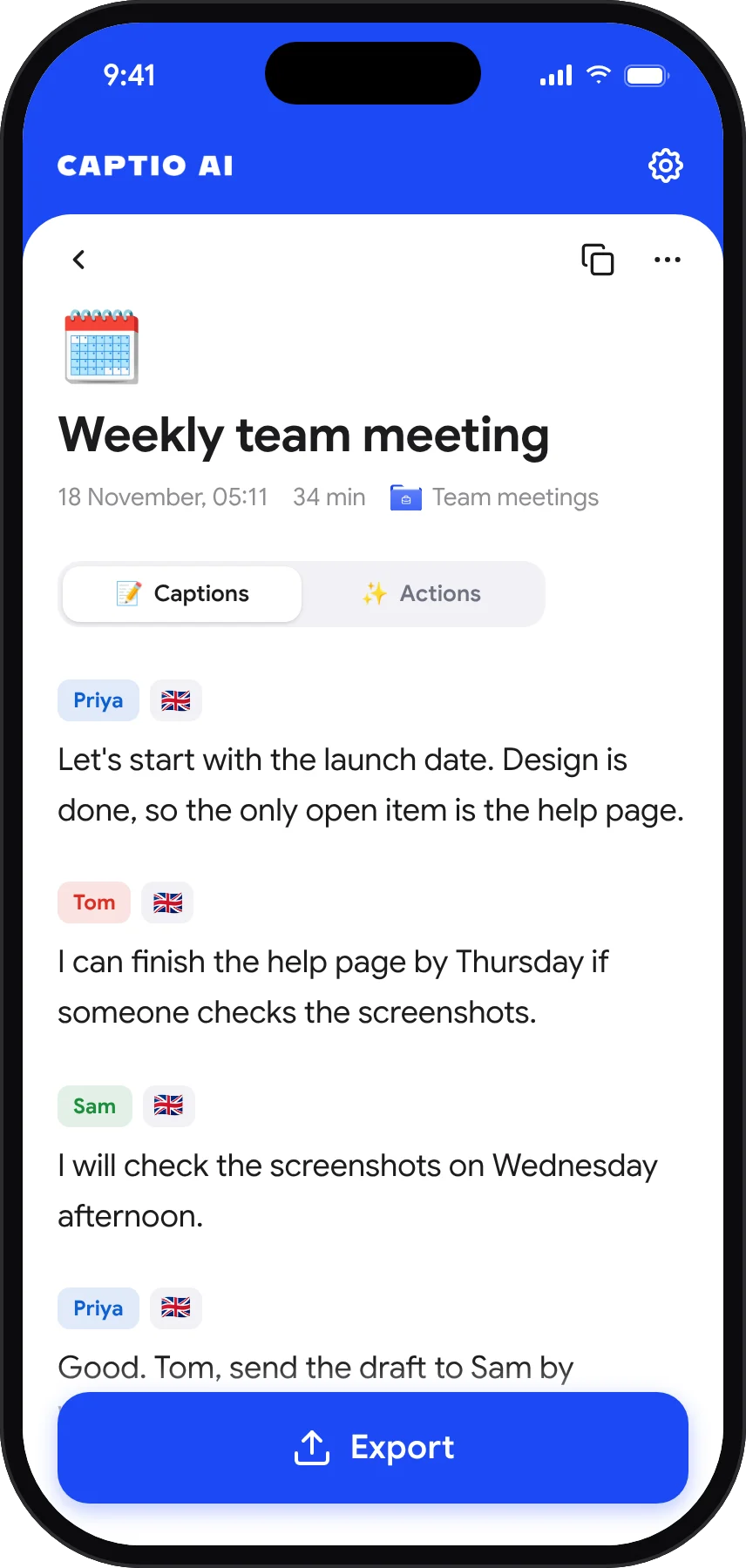
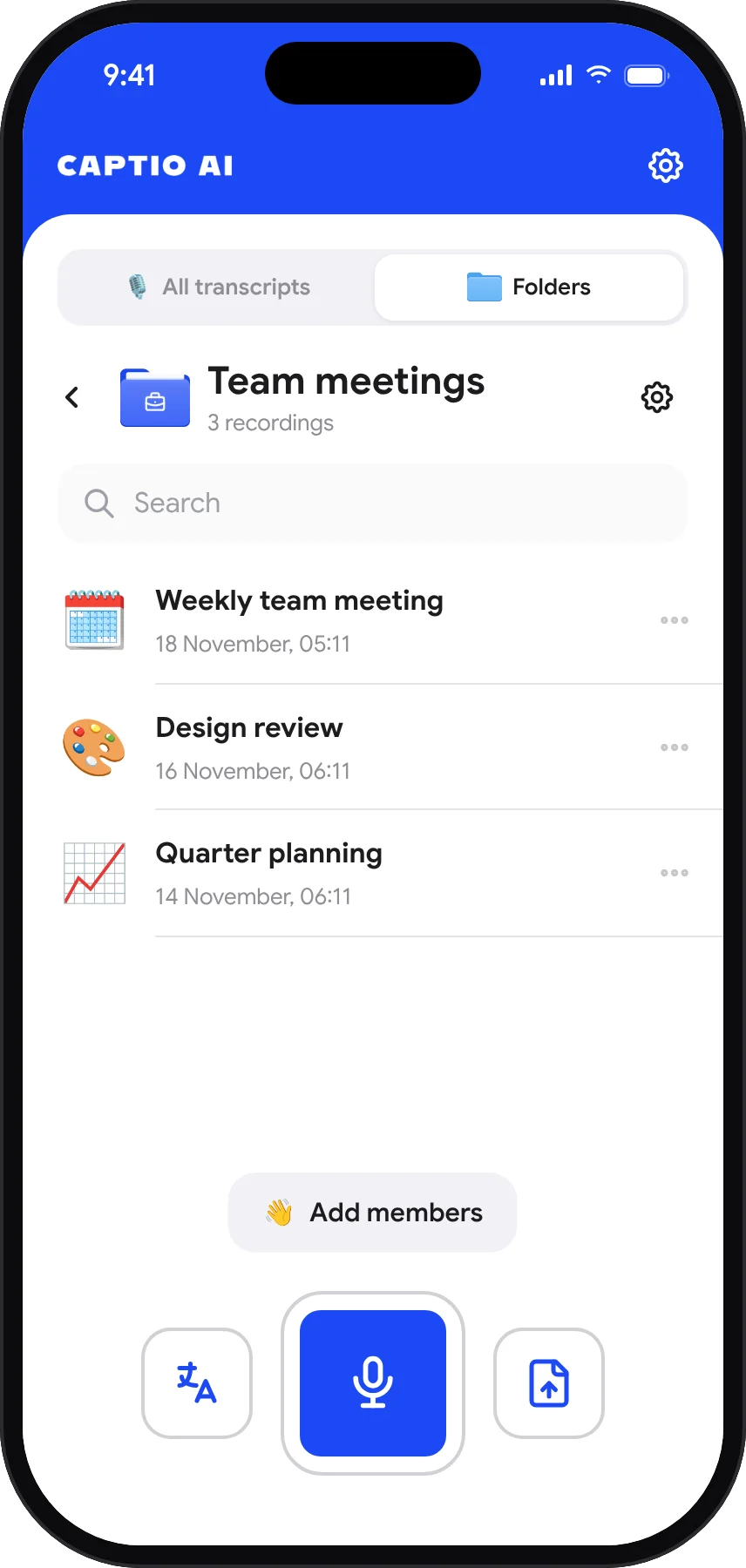
What this means in a team meeting: you start the captions, follow what is said, and save the session when the meeting ends. The pictures here show the iPhone app, because the 1.1.8 notes do not describe the watch screen. On the live captions page, Captio AI labels each speaker separately5. Saved recordings sit in a searchable library synced to your account8, and the To-dos action uses the speakers' names from your captions, so owners are right9.
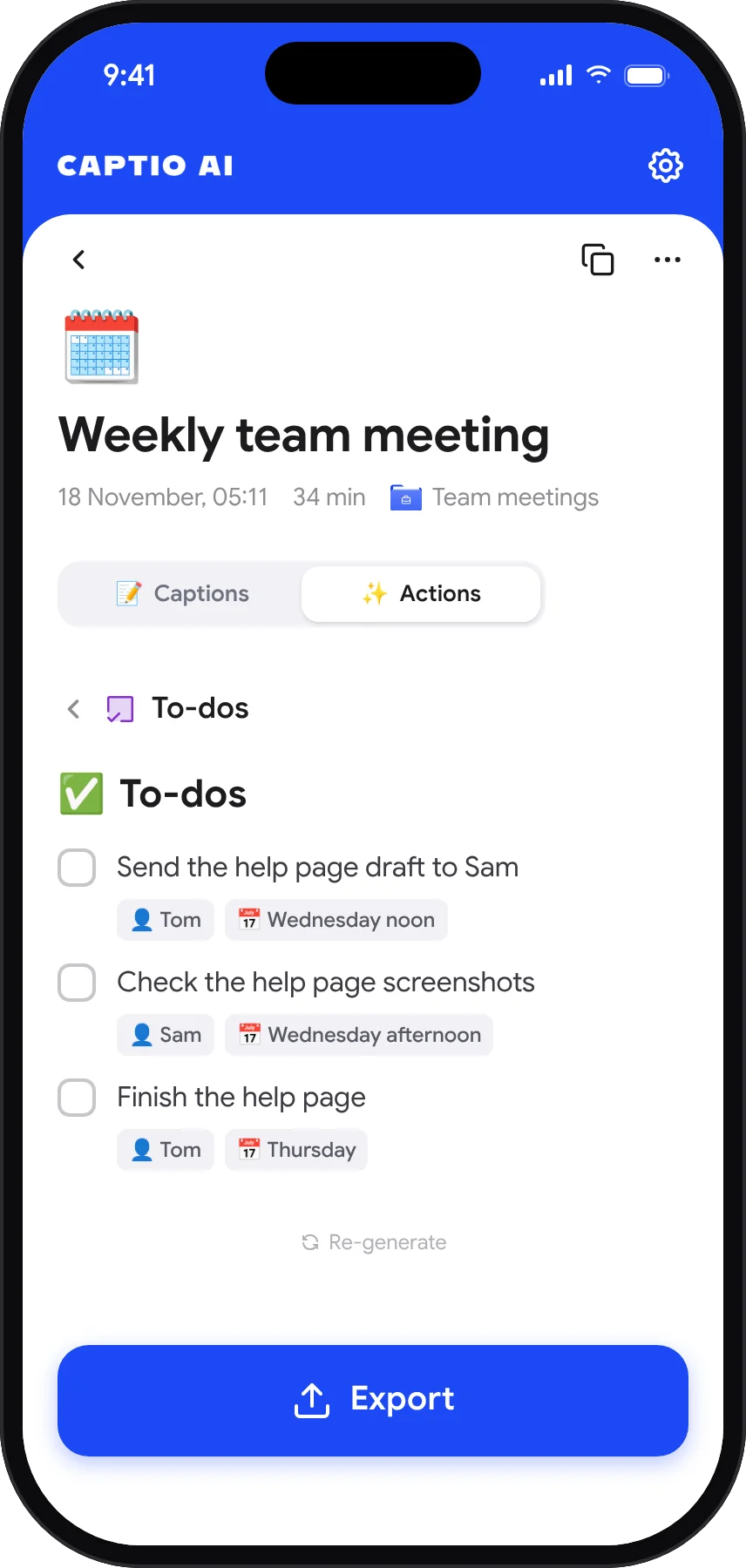
What the notes do not say matters too. They do not say how the watch connects to the iPhone, whether the iPhone must be nearby or open, how long a watch session can run, how much battery it uses, or which settings the watch has3. This article therefore lists none of them. Check the App Store listing for your own watch before you rely on it in an important meeting.
Some facts about the app itself still apply. Live captions need an internet connection, and the live captions page says offline captioning is not supported5. The app is free to download with in-app purchases, and the free plan has 100 free credits a day8. It is made for conversations in person.
How do the two options compare on the wrist?
Apple's Live Listen is a built-in Apple feature, while Captio AI is an app with a free plan and a paid Plus plan, so the two differ mainly in what they offer beyond reading words. The table lists only facts the sources state.
| What you compare | Apple Live Listen with Live Captions | Captio AI |
|---|---|---|
| What the watch does | Controls a Live Listen session on the iPhone and shows its Live Captions1 | Follow live captions and translation, start, pause and save, read recordings3 |
| Starts from | Control Center on the watch, with Remote Control and Hearing Controls set up1 | Not stated in the notes3 |
| Rewind a missed word | Go back 10 seconds1 | Not stated3 |
| Translation on the wrist | Not mentioned in Apple's page1 | Live translation named in the notes3 |
| Hearing devices | Sends audio to AirPods, Beats or Made for iPhone hearing devices2 | Not stated3 |
| Languages | Not available in all languages, countries or regions1 | 60+ languages on the live captions page; the watch's list is not stated5 |
| Needs | iPhone and watch signed in to the same Apple Account1; the feature arrived with watchOS 267 | watchOS 10.0 or later; internet for live captions35 |
| Price | Built into Apple devices12; the pages state no separate price | Free plan with 100 free credits a day8; Plus is Monthly US$14.99 or Yearly US$79.99 as of November 2026, US App Store3 |
Which one fits which situation?
Which option fits depends on the situation, and in a few of them the table's rows decide it.
- A team meeting. Apple's Live Listen lets you start and stop from across the table without interrupting the meeting, and lets you jump back 10 seconds21. Captio AI names speakers and keeps a saved transcript you can read afterwards35. See captions for meetings.
- A lecture. Apple names a lecture hall as a place Live Listen is meant for2. For a lecture you also want the words afterwards, and Captio AI also keeps your saved recordings in a searchable library8. Our lecture guide covers your rights and note-takers.
- A dinner or a restaurant. Apple names a noisy restaurant in its guide1. Captio AI lists restaurants as a use case, and speaker names help when several people talk.
- A conversation in another language. The Captio AI notes name live translation on the wrist3. Apple's page does not mention translation, and says Live Captions is not available in every language1.
- A doctor's appointment. A watch is a second aid here, not the first. Our doctor's appointment guide covers asking the clinic for an interpreter or live captioner.
What else can an Apple Watch do for hearing?
Apple Watch can also help protect your hearing: the Noise app tells you when sound around you could affect it. The app measures sound levels with the watch's microphone, does not record or save sounds, and labels levels above 80 decibels as Loud4. Apple says repeated, long-term exposure above 80 decibels can lead to permanent damage4. It gives no captions.
Where is Apple's Live Listen the better choice?
Apple's Live Listen is the better choice when you want a built-in feature that sends the sound to your hearing devices as well as the words to your wrist. It needs no extra app, it works with AirPods, Beats and Made for iPhone hearing devices, and it has a 10 second rewind12. Captio AI needs the app installed, needs the internet for live captions, and the notes do not describe the watch beyond one sentence35. Our best live caption apps article compares more tools.
Which should you use?
Use Apple's Live Listen if you already wear AirPods or a Made for iPhone hearing device, your language is on Apple's list, and you want a built-in feature. Apple describes Live Listen as sending sound to such devices and does not say whether a session or its captions work without one, so test it on your own devices12. Use Captio AI if you want translation, named speakers and saved recordings with a Summary and To-dos, or if your language is not on Apple's list. Many people will use both: Apple's controls for the audio, Captio AI for the record.
Whichever you choose, try it once at home before the meeting. A watch is a glance, not a full record, and for a conversation where every word counts, a live human captioner is still the standard, as our CART article explains.

Read what people say, while they say it
Captio AI puts live captions on your phone for conversations, appointments, lectures and meetings, in 60+ languages. Free to start. Private by default.
Frequently asked questions
Can I read live captions of a team meeting on an Apple Watch?
Yes, in two ways. Apple's Live Listen shows Live Captions of what the iPhone picks up on a paired Apple Watch, and Apple names meetings among the situations it is meant for [1][2]. Captio AI, a live captioning app for deaf and hard of hearing people, lets you follow live captions and start, pause and save them from the watch [3].
Does Apple Watch show live captions in a noisy restaurant?
Apple's guide names a noisy restaurant as a situation where Live Listen transcription on the wrist helps, as long as the iPhone is near the people speaking [1]. Apple also says Live Captions is not available in all languages, countries or regions, and its accuracy may vary [1]. See our restaurants page for how Captio AI handles a dinner table.
Do I need an iPhone to use live captions on an Apple Watch?
For Apple's Live Listen captions, yes: the captions come from a Live Listen session on the iPhone, and both devices must be signed in to the same Apple Account [1]. For Captio AI, the version 1.1.8 notes and the App Store listing do not say how the watch connects to the iPhone, so check the listing before you rely on it [3].
Which Apple Watch can run the Captio AI watch app?
The App Store listing says the Apple Watch app needs watchOS 10.0 or later, and lists iPhone, iPad and Apple Watch on its platform line [3]. Apple's Live Listen captions on the watch came with watchOS 26 [7]. Check Apple's own pages for which watch models can run your watchOS version. Captio AI itself needs an internet connection for live captions.
Can I read a translation on my wrist when someone speaks German or Spanish?
The version 1.1.8 notes for Captio AI say you can follow live captions and translation on your wrist [3]. The notes do not list which languages the watch supports, so for a conversation in German or Spanish see the German page and the Live Translator page for the languages the app supports.
Is a watch enough for a doctor's appointment?
Apple says Live Captions accuracy may vary and should not be relied on in high-risk or emergency situations [1]. For a doctor's appointment, ask the clinic about an interpreter or live captioner, and treat the watch as a second aid. Our doctor's appointment guide has scripts for the booking call and the consulting room.
Can I read old recordings on the Apple Watch?
The Captio AI version 1.1.8 notes say you can read your recordings on the watch [3]. They do not say how many recordings the watch shows or whether summaries appear there, so do not count on more than the transcript list.
Sources
- 1Control Live Listen on iPhone from Apple Watch (Apple Watch User Guide)Apple Support, 2026
- 2Accessibility: Hearing features (Live Captions and Live Listen)Apple, 2026
- 3Live Captions - Captio AI (App Store listing, version 1.1.8)Apple App Store, 2026
- 4Use the Noise app on your Apple WatchApple Support, 2026
- 5Live CaptionsCaptio AI, 2026
- 6Deafness and hearing loss (fact sheet)World Health Organization, 2025
- 7watchOS 26 delivers more personalized ways to stay active and connectedApple Newsroom, 2025
- 8About Captio AICaptio AI, 2026
- 9AI Summary and actionsCaptio AI, 2026
Written by Nate from Captio AI. Published 18 November 2026. Every figure on this page links to its source. Spotted a mistake? hello@captioai.app