

Connectors
Ask your recordings anything.
Copy the address
In Captio AI, open Settings, then Connectors, and copy https://captioai.app/mcp, or send it to your computer.
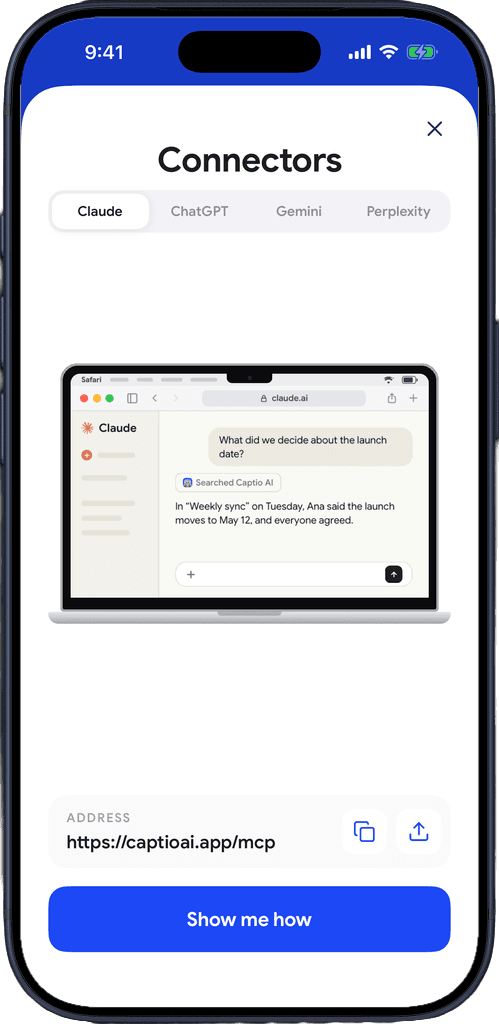
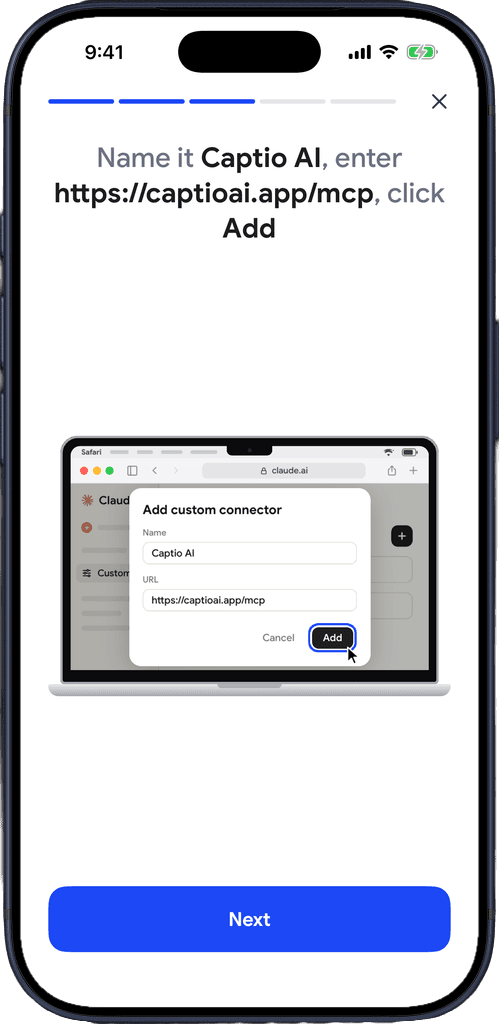
Add it to your chat app
Add a custom connector in Claude, ChatGPT, Gemini or Perplexity. Captio AI shows the steps for each.
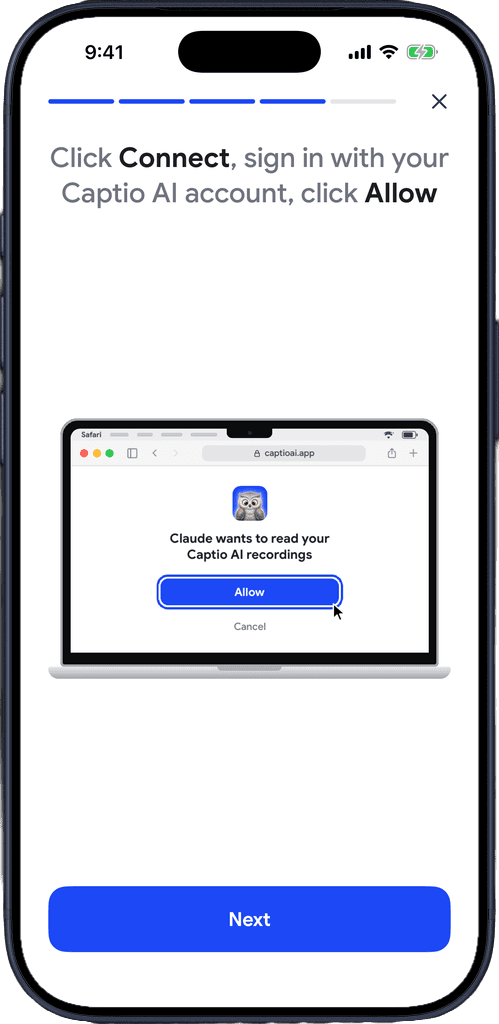
Sign in and ask
Sign in with your Captio AI account, click Allow, then ask about any recording.
Download for free
Your captions, one question away
Hours of meetings, lectures and appointments. Ask the chat app you already use and get the answer with who said it and when.
Finds it by meaning
Ask in your own words. It finds the passage even when different words were spoken, and across languages.
Exact words too
Names, numbers and quotes: it can list every line where the exact words were said.
Reads a whole recording
Ask for a summary of Tuesday's meeting, or just the part where someone talked about the budget.
Knows who said it
Answers come with who said it, from the names in your captions, and when and where it was recorded.
Shared folders included
A team that records into one shared folder can each ask their own chat app about the same meetings.
Four chat apps
Claude, ChatGPT, Gemini and Perplexity. Once added on the web, it also works in that chat app on your phone.
Read-only
The chat app can search and read. It can't change, add or delete anything.
Nothing to install
It's one address you add in your chat app. No plugin, no download.
Free and Plus alike
Every Captio AI account can use it. Your chat app's own plan rules for custom connectors apply.
Download for free
You decide what it reads.
Read-only
The connector can search and read your recordings. It can't edit, delete or add anything.
Only what you can see
Your own recordings and those in shared folders you belong to. Never anyone's other recordings.
Only after you allow it
It works only after you sign in with your Captio AI account and click Allow. Remove the connector in your chat app to stop it.

Download for free
Frequently asked questions


Captio AI also includes Live Captions, Live Translator, Audio Transcription, AI Summary, AI Actions, Export, Folders, Recognize Voices, Speaker Direction and Widgets.