

How to get live captions on a Windows or Mac computer, or in a browser
Windows 11 22H2 and Macs with Apple silicon can caption the room by microphone; Chrome describes audio media; Web Captioner has sunset. Setup and limits.

Short answer
For a meeting or lecture, turn on Live captions in Windows 11 (version 22H2 or later) and switch on microphone audio, or turn on Live Captions on a Mac with Apple silicon and choose Microphone [1][2]. Chrome's Live Caption page describes audio media, not a microphone [3], and Web Captioner has sunset [5]. Captio AI, a live captioning app for deaf and hard of hearing people, can be opened at captioai.app/app on any computer [4].
22H21
the Windows 11 version that Live captions needs, as of November 2026
Apple silicon2
the Mac chip that Apple says Live Captions needs
Off by default1
Windows includes microphone audio in Live captions only after you switch it on
On this page
- At a glance: which computer option captions the room?
- How do you turn on live captions in Windows 11 for a meeting?
- How do you turn on live captions on a Mac for a lecture?
- Does Chrome's Live Caption caption a lecture hall?
- What does Captio AI on the web add?
- Which setup fits which situation?
- Are there browser tools for live captions?
- Where the built-in options are the better choice
A Windows 11 laptop, a Mac with Apple silicon or a desktop computer can caption a meeting or a lecture without any extra software, if you point it at the microphone. This guide covers the setup for each, why a browser's captions usually don't work for a room, and where Captio AI, a live captioning app for deaf and hard of hearing people, now fits in. All details come from the makers' own pages, opened in November 2026.
At a glance: which computer option captions the room?
Windows 11 and Macs with Apple silicon can caption speech picked up by the microphone, while Chrome's Live Caption is described for audio media. The table shows what each page states.
| Option | Captions speech in the room? | Requirement | Where the audio is processed |
|---|---|---|---|
| Windows 11 Live captions | Yes, after you turn on microphone audio1 | Windows 11, version 22H2 or later1 | On the device1 |
| Mac Live Captions | Yes, with the Microphone setting2 | Mac with Apple silicon2 | On the device2 |
| Chrome Live Caption | Not stated; page describes audio media3 | Chrome on Windows, Mac or Linux3 | Locally, never stored3 |
| Captio AI on the web | Not stated for the web version4 | Any computer, same account as the app4 | Not stated for the web version |
How do you turn on live captions in Windows 11 for a meeting?
You turn on Live captions in Windows 11 under Settings, Accessibility, Captions, and then switch on microphone audio so the room is captioned1. Microsoft also lists the quick settings and the keyboard shortcut Windows key plus Ctrl plus L1.
The microphone step matters for a deaf or hard of hearing person in a meeting room. Microsoft says the Include microphone audio option, found in Preferences, is off by default when you turn on live captions1. Until you switch it on, the captions follow the sound your computer plays, such as a video call, and a colleague talking next to you stays silent on screen. Two more details from Microsoft's page matter in a room. Live captions pays attention to the default sound output device set in Settings, System, Sound, and Microsoft says you might need to change the default device for audio to be picked up1. And "Sound audio will be prioritized over microphone audio" [1]: Microsoft's example is a virtual meeting where a remote participant and you speak over each other, and the captions then show the remote participant, not you1. My reading, not Microsoft's: in a hybrid meeting, people in the room could drop out of the captions while someone remote is talking, so check it in a test call. Place the laptop between you and the speakers, and consider a phone captioning app as a second view.
Microsoft lists speech recognition for Chinese, Danish, English in several regional variants, French, German, Italian, Japanese, Korean, Portuguese and Spanish, among others1. A German meeting or a Spanish seminar is therefore covered; check the full list for your language.
How do you turn on live captions on a Mac for a lecture?
On a Mac you open System Settings, choose Accessibility, click Live Captions and turn it on, then click the Microphone icon in the Live Captions window to switch between the Mac's audio output and the microphone2. Apple describes the microphone as picking up sound around the computer, such as someone speaking in the room2. Apple states that Live Captions is available only on Mac computers with Apple silicon2.
For a lecture the Microphone choice is the one to remember, because Apple says that by default Live Captions transcribes audio from all apps2. Apple says the feature is not available in all languages, countries or regions, and points to its feature availability page2. Audio is processed on the device2.
Does Chrome's Live Caption caption a lecture hall?
Chrome's Live Caption is described by Google as captioning "videos, podcasts, games, live streams, video calls, or other audio media" in Chrome3. The page does not mention a microphone, so it should not be your plan for a classroom or a conference room.
Chrome does have one useful trait for lectures that are recorded: Google says audio and captions are processed locally, never stored, and never leave your device3. To turn it on, open Chrome, go to Settings, then Accessibility, and turn on Live Caption3. Other languages download as language packs3. If your lecture is a recorded video that plays in Chrome, this is the quickest option. For a live room, use the system feature or an app.
What does Captio AI on the web add?
Captio AI on the web is a way to open Captio AI on a computer: the App Store notes for version 1.1.7 say to open captioai.app/app on any computer and sign in with the same account4. In the iPhone app you find it in Settings4.
That is all the notes confirm. They do not say which features the web version has, which browsers it supports or whether it captions through the computer's microphone, so this guide does not promise any of that. If you plan to use it for a meeting or a lecture, open captioai.app/app the day before, sign in and test it with a colleague talking across the table.
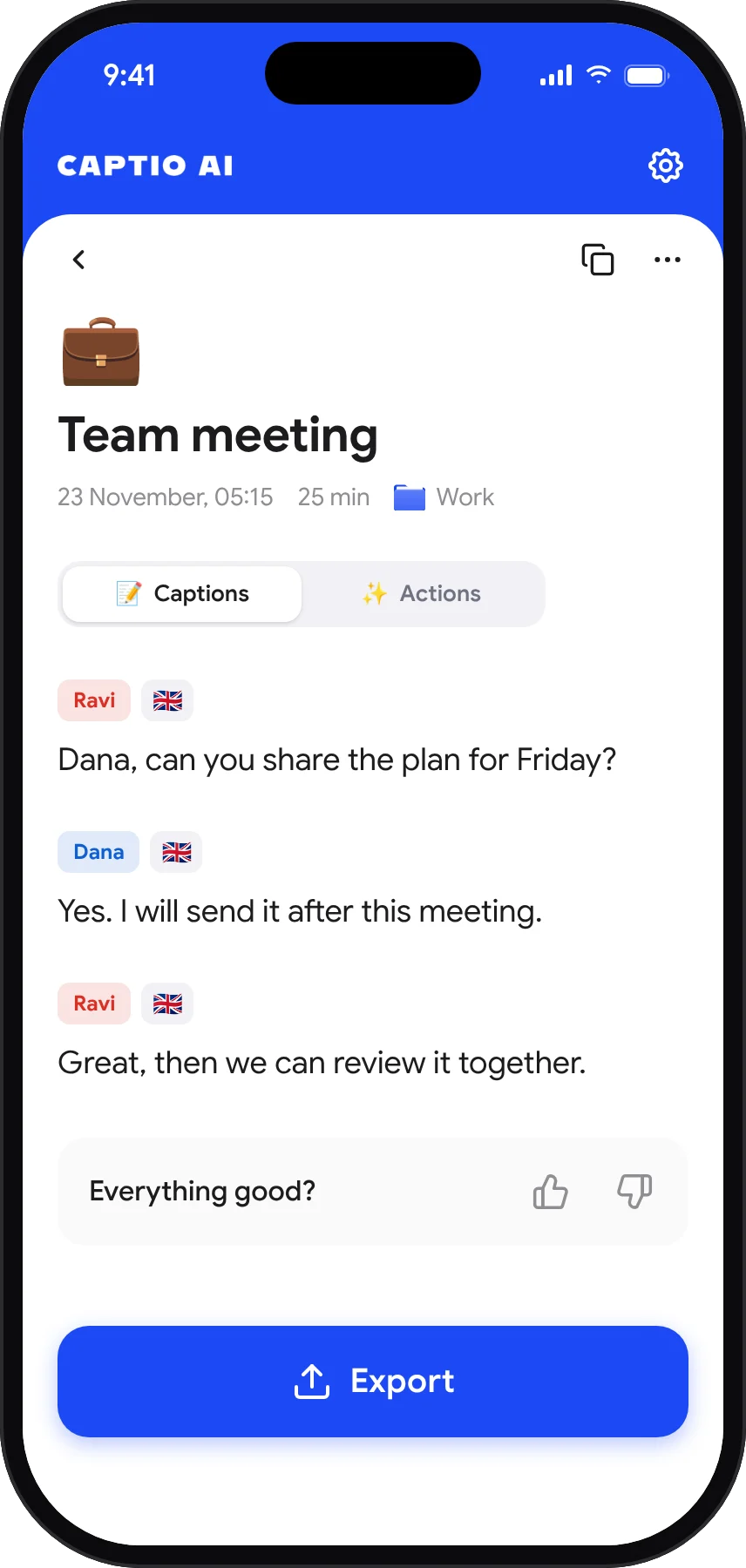
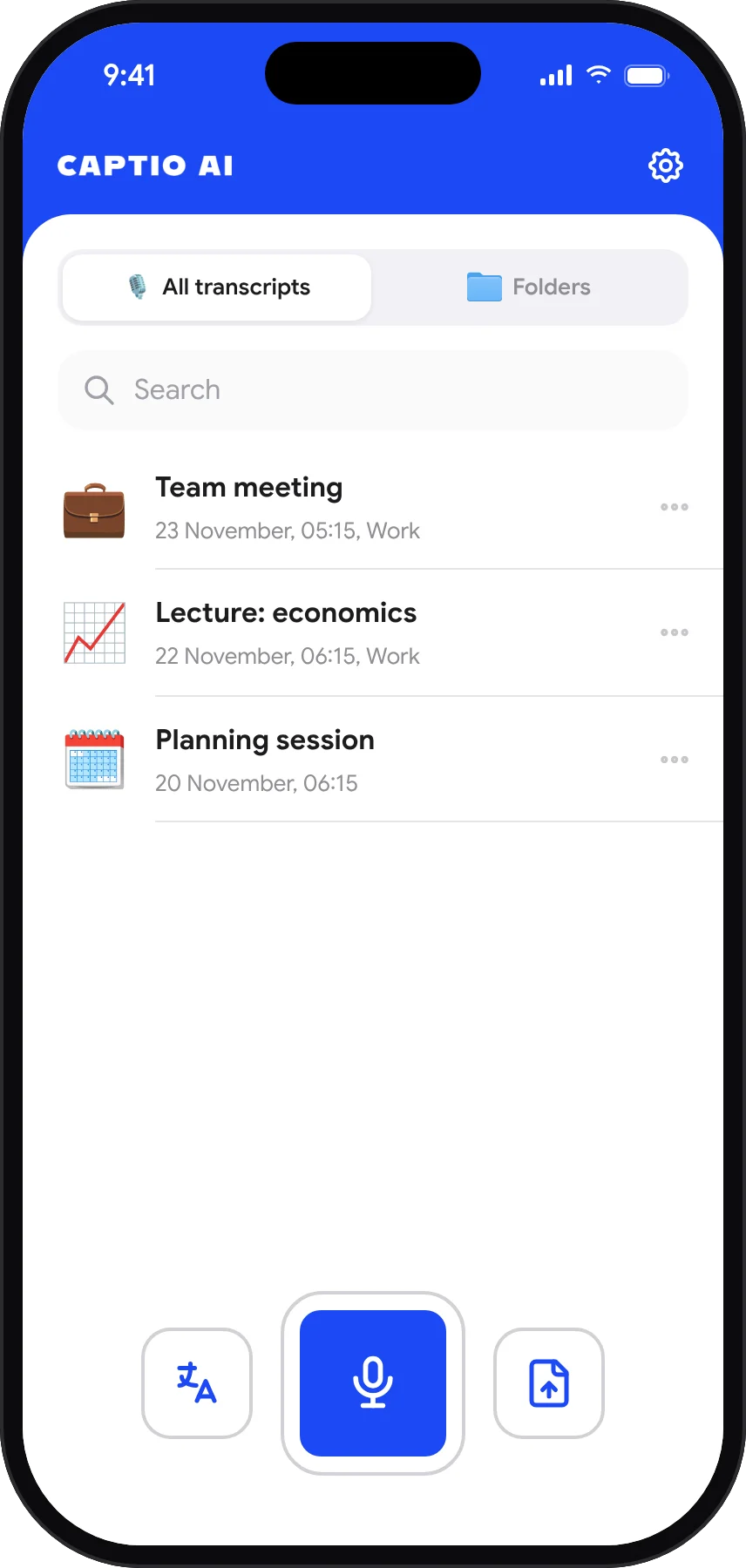
What the app itself does is documented on the Live Captions page: speech in the room appears word by word on your phone. A phone beside the laptop is often a good setup anyway, since it sits closer to the speaker than a laptop screen does.
Which setup fits which situation?
Each situation below names the setup that fits it best, based on what the pages state.
- A team meeting in a room, on Windows 11: Windows Live captions with microphone audio on, laptop in the middle of the table1.
- A lecture, on a Mac with Apple silicon: Mac Live Captions with Microphone selected, Mac close to the lecturer2.
- A recorded lecture playing in Chrome: Chrome's Live Caption, which Google describes for audio media3.
- A doctor's appointment or job interview in person: a phone on the table, since a laptop is awkward; see the doctor's appointment page for how Captio AI is used there.
- A group at a dinner or in a noisy room: a phone app that labels speakers, covered in how to see who is talking in live captions.
Whichever you pick, test it before the real conversation, and ask the organiser about a human captioner where you are entitled to one. Apple itself says Live Captions should not be relied upon in high-risk or emergency situations2. If a microphone is the weak point, choosing the right microphone is worth a read.
Are there browser tools for live captions?
Web Captioner, a speech-to-text tool, is no longer offered: its page says "Web Captioner has sunset", and its author says they open sourced it in 20235. If you find a browser captioning tool, check whether it is still maintained and what it says about where audio goes. Chrome's Live Caption has a current Google help page, and Google describes it for media3. For a room, the system features above or a phone app are the options with a maker's own help page.
Where the built-in options are the better choice
Windows 11 Live captions and Mac Live Captions are the better choice when you want captions of what the computer plays together with speech around it, with no sign-up and no app to install. Both process audio on the device, per Microsoft and Apple12, so nothing leaves the machine. Captio AI needs an internet connection for live captions, and its free plan is 100 free credits a day, as of October 2026.

Read what people say, while they say it
Captio AI puts live captions on your phone for conversations, appointments, lectures and meetings, in 60+ languages. Free to start. Private by default.
Frequently asked questions
Does Windows 11 caption a meeting in the room, not just videos?
Yes, if you switch it on. In Windows Live captions you turn on the Include microphone audio option in Preferences, and Microsoft says it is off by default [1]. Without it, Windows captions the sound the computer plays, which suits a video call but not a person sitting across the table.
Can a Mac caption a lecture in the room?
A Mac with Apple silicon can. Open System Settings, Accessibility, Live Captions, turn it on and click the Microphone icon in the Live Captions window to caption speech picked up around the computer [2]. Apple says it may not be available in every language, country or region [2].
Does Chrome's Live Caption work for a lecture hall?
Google's page says Live Caption captions videos, podcasts, games, live streams, video calls or other audio media in Chrome [3]. It does not say it captions a microphone, so for a lecture hall use the Windows or Mac feature or an app instead.
Are live captions on a Windows laptop private for a doctor's appointment or a job interview?
Microsoft states that audio and caption generation happen on the device, and that audio, voice data and captions never leave it [1]. That describes the Windows feature only. Captio AI asks before audio is sent for processing and does not store audio on its servers.
Can I get live captions in Spanish or German on a computer?
Microsoft's Windows page lists speech recognition for German, Spanish, French, Italian and other languages [1]. Apple says the Mac feature is not available in all languages [2]. Captio AI covers 60 languages for captions, so check each list for your language.
Is Captio AI on the web the same as the iPhone app?
The App Store notes for version 1.1.7 say you can open captioai.app/app on any computer and sign in with the same account, and that you find it in Settings [4]. They do not list which features the web version has, so check the page itself before a meeting.
Can I rely on computer captions in a medical or emergency setting?
No. Apple says the accuracy of Live Captions may vary and should not be relied upon in high-risk or emergency situations [2]. Ask for a human captioner or interpreter where a perfect record matters, and treat any captioning app as a backup.
Do I pay for the built-in captions on Windows or Mac?
The Microsoft and Apple pages describe the features as part of the system settings and mention no separate charge [1][2]. Captio AI is free to download with 100 free credits a day, as of October 2026, and Captio AI Plus removes the daily limit.
Sources
- 1Use live captions to better understand audioMicrosoft Support, 2026
- 2Get captions of spoken and computer audio on MacApple Support, macOS User Guide, 2026
- 3Use Live Caption in ChromeGoogle Chrome Help, 2026
- 4Captio AI, live captions: What's New in version 1.1.7Apple App Store, 2026
- 5Web CaptionerCurt Grimes, 2023
Written by Nate from Captio AI. Published 8 November 2026, last updated 23 November 2026. Every figure on this page links to its source. Spotted a mistake? hello@captioai.app