

How to use live captions on an iPad in a lecture or meeting
Two ways to get live captions on an iPad: Apple's built-in Live Captions (18 languages and regions) and Captio AI (60 languages). Setup and limits.
 Nate from Captio AI6 min read
Short answer
To get live captions on an iPad in a lecture or meeting, turn on Live Captions in Settings, Accessibility and tap Microphone, or use Captio AI, a live captioning app for deaf and hard of hearing people that runs as a full iPad app. Apple's list has 18 language and region entries [3]; Captio AI covers 60 languages. Prop the iPad where you can see it and the speaker.
183
language and region entries on Apple's feature availability page for Live Captions, as of November 2026
605
languages for captions and translation in Captio AI, which runs as a full iPad app
iOS 15.15
or later is what the App Store listing says Captio AI requires; it is compatible with iPhone, iPad and iPod touch
On this page
- How do I turn on Live Captions on an iPad?
- Which languages does Apple's Live Captions cover?
- How does Captio AI work on an iPad?
- Which one is better for a lecture, a meeting or a conference?
- How do I set up an iPad for a lecture?
- What rights do I have to a captioner in the US?
- What does each option not do?
An iPad can caption a lecture or a meeting in two ways: Apple's own Live Captions, built into iPadOS, or an app made for it. This guide shows how to set up each, what each does in a lecture hall, a team meeting and a conference, and where each one stops. Captio AI, a live captioning app for deaf and hard of hearing people, is now a full iPad app, so this guide compares it with Apple's feature using Apple's own pages.
How do I turn on Live Captions on an iPad?
Apple's Live Captions turns on in Settings: go to Accessibility, tap Live Captions, then turn on Live Captions1. Apple describes it as a real-time transcription of spoken audio in any app and in live conversations around you1. Once it is on:
- Tap the Live Captions window, then tap Microphone to caption an in-person conversation, such as a lecturer or a colleague across the table1.
- Tap iPad Audio instead to caption sound the iPad itself plays1.
- Drag the window to move it, drag its bottom edge to make it longer or shorter, or tap the full-screen button to fill the screen1.
- Tap Pause Listening when you want it to stop1.
- Open Appearance in the same settings to change the text, size and colour of the captions1.
Apple adds three limits on the same page: Live Captions is available on supported models, it isn't available in all languages, countries or regions, and its accuracy may vary and shouldn't be relied upon in high-risk or emergency situations1. Apple's FaceTime page also says Live Captions uses additional battery2.
Which languages does Apple's Live Captions cover?
As of November 2026, Apple's feature availability page lists 18 language and region entries for Live Captions3. They are Cantonese (China mainland and Hong Kong), English (Australia, Canada, India, Singapore, United Kingdom, United States), French (Canada and France), German (Germany), Japanese, Korean, Mandarin Chinese (China mainland and Taiwan), and Spanish (Mexico, Spain, United States)3.
That list has no Hindi, Arabic or Polish entry. A Hindi-speaking student in a lecture, an Arabic-speaking colleague in a meeting or a Polish speaker at a conference has to look elsewhere. Captio AI covers 60 languages for captions and translation, including Hindi, Arabic and Polish, and it handles speech that switches languages mid-sentence. You can also tell it the language to expect, so it starts tuned in from the first word.
How does Captio AI work on an iPad?
Captio AI runs on the iPad as a full app in every orientation and window size: Split View, Slide Over, Stage Manager and resizable windows. The App Store lists it as compatible with iPhone, iPad and iPod touch, and says it requires iOS 15.1 or later5. You start Live Captions from the record button, and the words appear while the person is still talking.
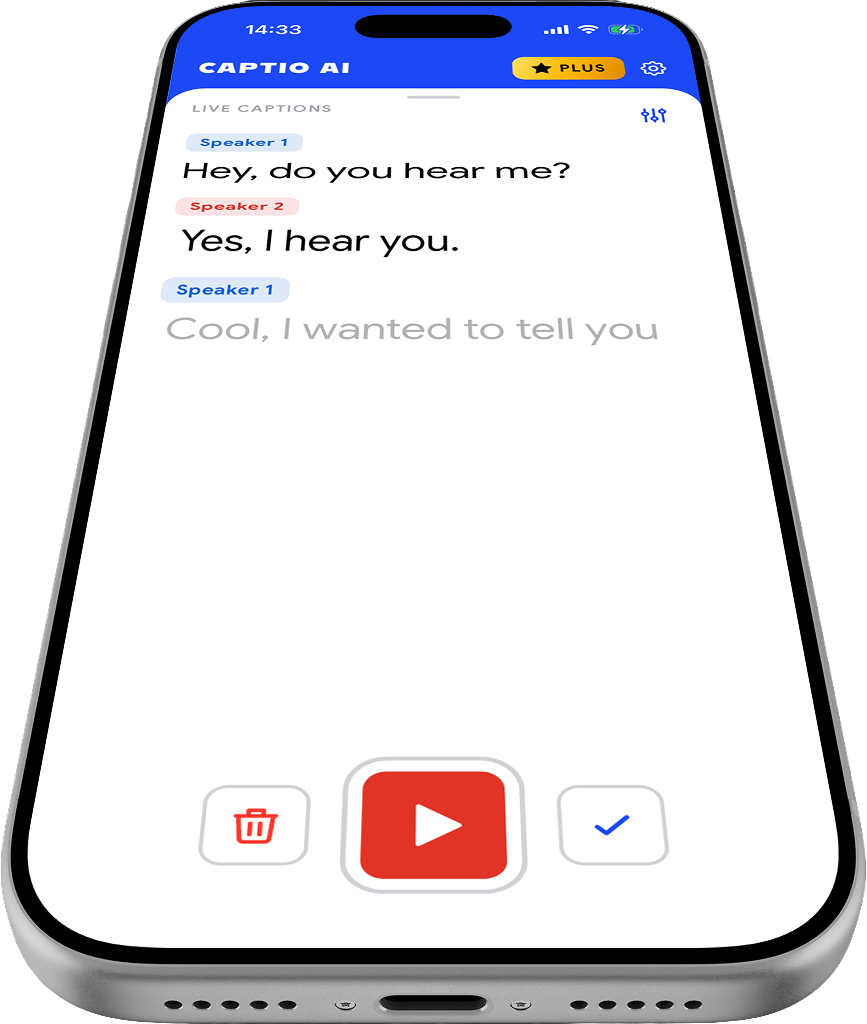
What changes on the larger screen:
- Live captions fill the whole iPad screen, so a lecture reads from across a desk.
- Translation shows the two panes side by side in landscape. Turn on the Translate switch in Live Translator and the original and the translated captions sit next to each other.
- Every other screen keeps the phone design in a centred column.
- Speaker direction and the Live Activity are not on iPad. Captions with the screen locked are an iPhone feature in Captio AI's list, so don't count on them on an iPad.
- Free and Plus work the same as on iPhone. The free plan gives 100 free credits a day, as of October 2026.
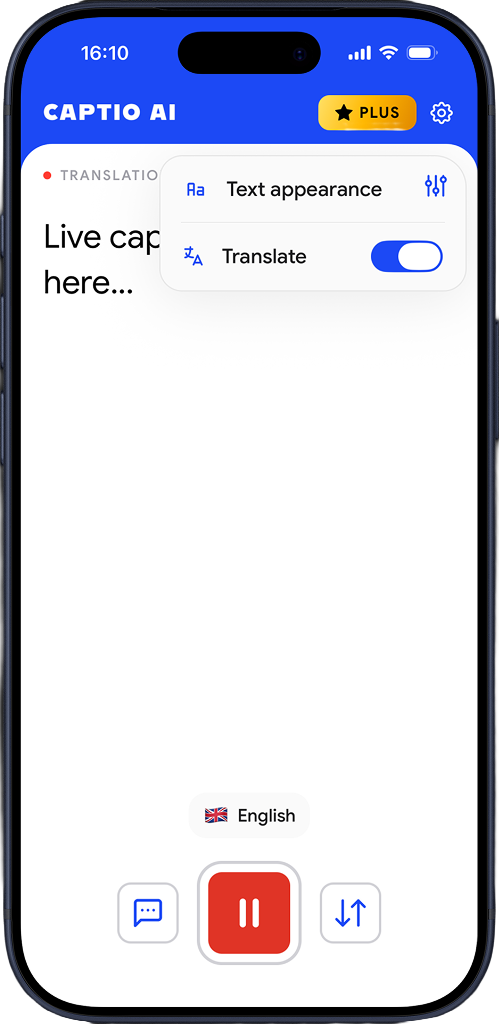
Live captions and translation need an internet connection. Without one the app still records, and the recording is transcribed when the iPad reconnects.
Which one is better for a lecture, a meeting or a conference?
Apple's Live Captions is the quicker start when your language is on Apple's list and you only need words on the screen. Captio AI is the better fit when you need a language outside that list, a saved transcript, translation or speaker names. The table puts each use case next to what each option offers.
| Use case | Apple's Live Captions on iPad | Captio AI on iPad |
|---|---|---|
| Lectures | Microphone captions in a movable window, in the 18 listed language and region entries13 | 60 languages; recordings saved with audio and searchable; Audio Transcription for recorded lectures |
| Meetings | Captions with copy to Notes or Messages1 | Speaker labels that you can rename, a saved transcript, AI Summary and export as text, link, PDF or email |
| Conferences | Pause Listening and a full-screen window1 | Translation side by side in landscape; records without internet and transcribes later |
| Group settings | Captions in one window; the guide's in-person steps don't mention speaker labels1 | Speaker labels (Speaker 1, Speaker 2) that you can rename after the recording |
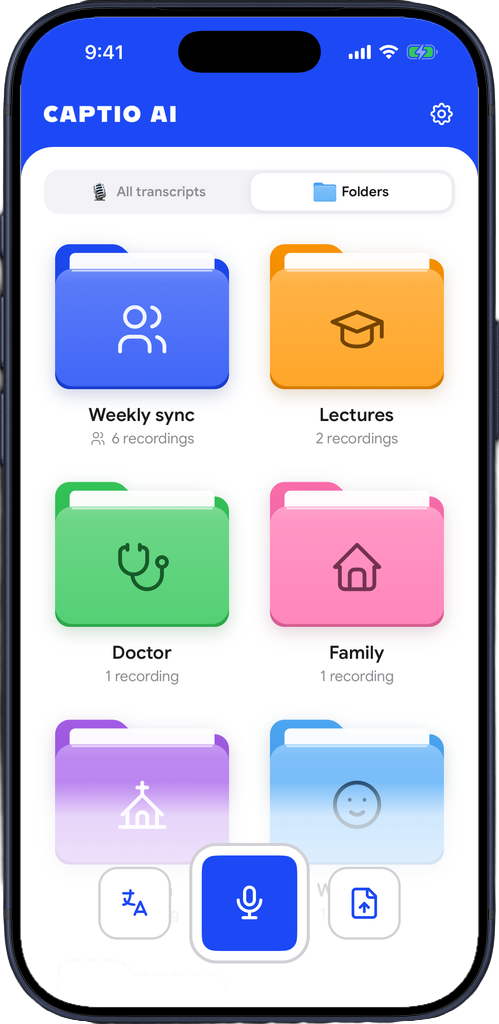
Apple's feature is built into iPadOS, which means nothing to install, and it also captions the iPad's own audio, for example a recorded lecture playing in another app1. Apple's guide describes copying captions into another app, not a saved library of recordings1. If you want a lecture to be searchable a week later, that is where an app earns its place. For long recorded sessions, see How to organize and share meeting transcripts in folders.
How do I set up an iPad for a lecture?
For a lecture, put the iPad where you can see both the screen and the lecturer, and start captions before the first word. These steps work with either option:
- Ask first. Check your school's rules on recording in class before you start a saved recording.
- Set the language. In Captio AI, pick the language of the lecture before you start; in Apple's Live Captions, check that your language is on the list3.
- Use Split View for notes. Captio AI keeps working in a narrower window next to a notes app.
- Plug the iPad in for long sessions. Apple says Live Captions uses additional battery2.
- Fix names after. Long-press an uncertain word in Captio AI to correct it everywhere in the recording, and add it to Words and names so a professor's name is right next time.
Captions from an app are a tool for you, not a replacement for a booked captioner or interpreter. For when a school or employer must provide one, see What is CART captioning?.
What rights do I have to a captioner in the US?
In the US, the ADA says state and local governments must give primary consideration to the aid or service the person with a communication disability requests, unless another equally effective means is available or the aid would fundamentally alter the service or cause an undue burden, defined as significant difficulty or expense4. This is legal information, not legal advice. ADA.gov lists real-time captioning, also called CART, as one auxiliary aid, a service where a transcriber types what is said at a meeting or event onto a screen4.
That page dates from 2020 and covers state and local governments (Title II) in that passage; rules for a private employer or a private university differ, so ask your disability services office or employer. An iPad app is a good backup when the captioner does not turn up or when you are in a small group the service does not cover.
What does each option not do?
Neither option replaces a human captioner when you need an exact record. Apple says Live Captions may vary in accuracy and shouldn't be relied on in high-risk or emergency situations1. Captio AI is one tool among others: it doesn't replace an interpreter, hearing care or a legal accommodation, it needs internet for live captions, and its free plan runs out after 100 free credits a day.
If two languages are in the room, for example English and Spanish at a team meeting, read How to caption a conversation in two languages.

Read what people say, while they say it
Captio AI puts live captions on your phone for conversations, appointments, lectures and meetings, in 60+ languages. Free to start. Private by default.
Frequently asked questions
Does the iPad have built-in live captions for a lecture?
Yes. Apple's Live Captions on iPad gives a real-time transcription of spoken audio in apps and of conversations around you. Go to Settings, Accessibility, Live Captions, turn it on, then tap Microphone to caption a lecture hall [1]. It is available on supported models and not in every language or region [1].
Can I use Live Captions on an iPad in a meeting in German or Spanish?
Apple's feature availability page lists German (Germany) and three Spanish entries (Mexico, Spain, United States) for Live Captions [3]. Captio AI covers German and Spanish too, and lets you tell the app the language to expect before the meeting starts.
Is Apple's Live Captions reliable enough for a class or a medical visit?
Apple says the accuracy of Live Captions may vary and shouldn't be relied upon in high-risk or emergency situations [1]. For a class where you are entitled to a captioner, ask the school first. Captio AI is one tool among others and does not replace an interpreter or a captioner.
Can I split the iPad screen between my notes and live captions?
Captio AI works in every iPad window size, including Split View, Slide Over, Stage Manager and resizable windows, so you can keep a notes app on one side.
Can I save a lecture transcript on an iPad?
With Captio AI, recordings are saved with their audio in a searchable library synced to your account, and you can export a transcript as text, a link, a PDF or an email. Apple's guide describes copying captions into another app such as Notes or Messages [1].
Does Captio AI work on an iPad without internet in a conference hall?
Live captions and live translation in Captio AI need an internet connection. Without one, the app still records, and the recording is transcribed when the iPad reconnects, which helps in a conference hall with poor signal.
Is a captioning app on an iPad enough for a job meeting in the US?
It depends on the employer and the situation, and this is legal information, not legal advice. The ADA.gov page cited here covers state and local governments, not private employers [4]. Ask your employer or an official ADA or EEOC source what applies to you, and use an app as a backup.
Do I need to pay to use Captio AI on an iPad?
No. Captio AI is free to download and the free plan gives 100 free credits a day, as of October 2026. Captio AI Plus removes the daily limit and works the same on iPad as on iPhone.
Sources
- 1Get live captions of spoken audio on iPadApple Support, iPad User Guide, 2026
- 2Use Live Captions and Live Translation in FaceTime on iPadApple Support, iPad User Guide, 2026
- 3iOS and iPadOS feature availabilityApple, 2026
- 4Effective CommunicationADA.gov, U.S. Department of Justice, 2020
- 5Live Captions - Captio AI AppApple App Store, 2026
Written by Nate from Captio AI. Published 3 November 2026. Every figure on this page links to its source. Spotted a mistake? hello@captioai.app